Bio Link
Customize your theme
Colors, fonts, buttons, backgrounds.
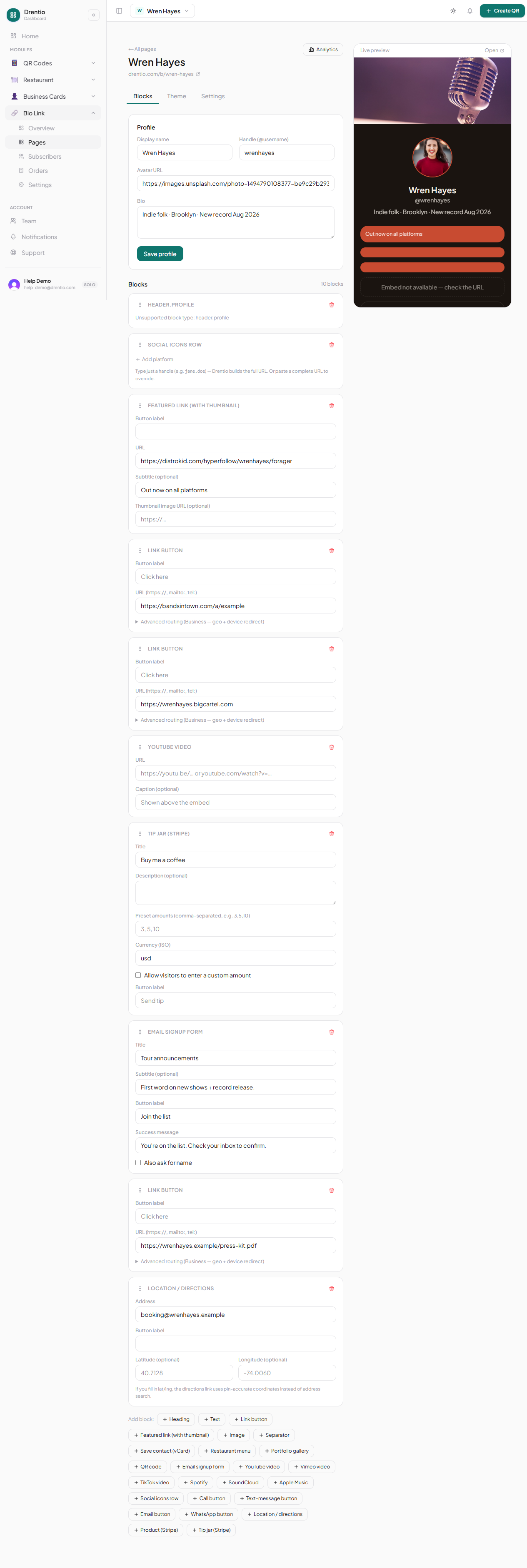
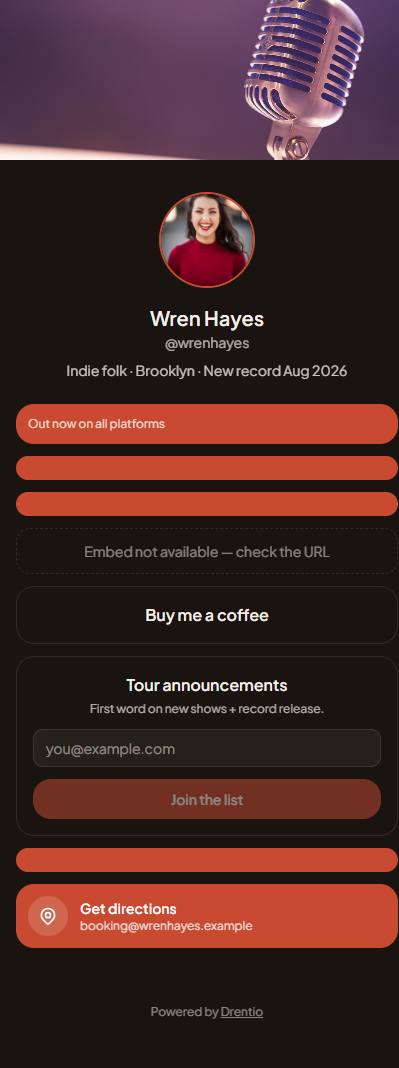
Your Bio Link page picks up brand colors automatically. But for a punchier or more on-brand look, you can override every visual choice in the Theme panel.
What you can customize
| Token | Default | Notes |
|---|---|---|
bg.color | white | Solid page background |
bg.image | none | Full-bleed image background (image overrides color) |
bg.gradient | none | Two-color gradient (e.g. brand-orange → black) |
text.color | auto | Auto-contrasted vs background |
accent.color | brand primary | Buttons, links, icons |
button.style | filled | filled / outline / ghost / pill |
button.radius | 8px | 0–24px (0 = square, 24 = pill) |
font.family | Inter | 6 web-safe families |
font.weight | 400 | 400 / 500 / 600 / 700 |
How to edit
Step 1 — Open Theme panel
From the page editor → top-right → Theme.
Step 2 — Pick a preset OR customize
Six built-in presets ship — Classic Light, Punchy Dark, Brand Default, Minimal, Y2K, Editorial. Pick one as a starting point, then tweak individual tokens.
Step 3 — Preview live
Every change updates the right-side preview instantly. No save-and-reload.
Step 4 — Save
Tap Save theme. Applies to the whole page.
Per-block theme overrides
Some blocks support their own theme overrides. Example: a featured product card can be on a different background than the rest of the page. From the block's settings → Theme override → Custom.
Use sparingly. A coherent theme converts better than a busy one.
Match your other Drentio surfaces. If you've already customized your Restaurant menu theme, copy those tokens here for a consistent brand. Same colors, same buttons, same fonts across your bio + menu = recognizable brand.
Plan note
- Theme presets + accent color: Free
- Custom backgrounds + fonts + button radius: Pro ($9/mo)
- Custom CSS: Business ($29/mo) — drop-in stylesheet for unrestricted control