Restaurant
Take online orders
Cart + Stripe Checkout for table or pickup orders.
Online ordering turns your menu page into a self-service ordering terminal. Diners build a cart, add a tip, pay via card or cash, and the order lands in your Orders tab in real-time.
What you need to enable
- Online ordering (the master switch) is on by default for Pro+ plans
- A payment processor — Stripe Connect today, with regional rails on the roadmap (see Payment processors). One-time setup per brand.
- OR cash-only mode — if you don't want to take card payments yet, leave Stripe disconnected and only the Cash option appears at checkout. Operator marks each order paid manually.
How to connect a payment processor
Step 1 — Go to Store Settings
From Stores → your store → Settings. Scroll to Online ordering.
Step 2 — Connect Stripe (if eligible)
Tap Connect Stripe. You'll land on Stripe's onboarding flow (they collect your bank info, business details, tax info). Takes ~5-10 minutes.
If you're in a region Stripe doesn't serve well (Pakistan, India, parts of Africa / LATAM / SEA), skip this step — see Payment processors for what's planned.
Step 3 — Verify the connection
Back on the Drentio settings page, you should see Connected · Acme Restaurant LLC · USD. Now you can accept card payments.
Step 4 — (Optional) Enable cash-only
If you can't connect a card processor today, you can still run online ordering with Cash only. Diners place the order online; staff collects cash on pickup / delivery and flips the order to Paid in the Orders tab. Very common for new operators in PK / India / LATAM until a card processor is wired up.
The diner experience
- Diner taps items + modifiers + combos to add to bag
- Cart drawer opens at the bottom — shows line items, tip selector, optional promo code, total
- Diner picks Card or Cash
- Card → Stripe Checkout sheet → confirm → order placed
- Cash → order placed immediately with "Not Paid" status; staff flips to Paid when collected
The operator experience
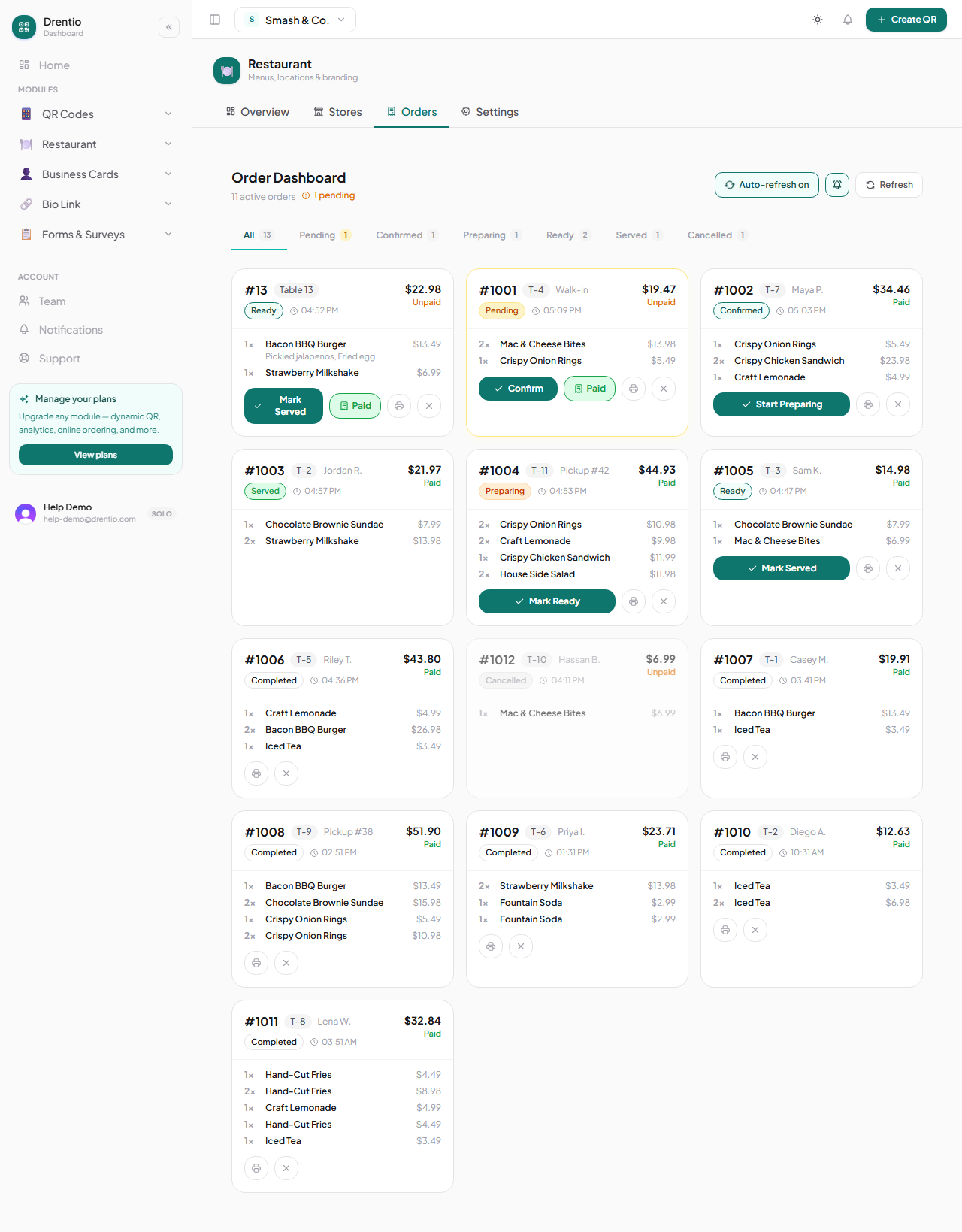
Open the Orders tab inside your store. Polling refreshes every 15 seconds; a two-note chime plays on new orders. Each order card shows:
- Order # + table name + elapsed time
- Items + modifiers + combo breakdown
- Customer name / phone / notes (when provided)
- Payment status + payment method
- Actions: Mark Paid (for cash) · Start Prep · Mark Ready · Mark Served
Test the full flow with a real card before launching. Place an order with a small total (~$0.50), pay with your actual card, confirm the money landed in your Stripe dashboard. Catches issues with Stripe Connect verification, currency mismatches, etc.
Plan note
- Pro $39 — online ordering, Stripe Connect, cart, tipping
- Premium $119 — adds KDS, floor view, customer-initiated cancellation
Related
Kitchen Display System (KDS)
Order cards, prep timers, item-level checkboxes.
Floor staff sold-out toggle
Mobile-first view for marking items unavailable on the floor.
Discount codes
Cart-applied promo codes with usage limits.
Payment processors
How Stripe Connect handles customer collection, and how to run cash-only where Stripe isn't available.