QR codes
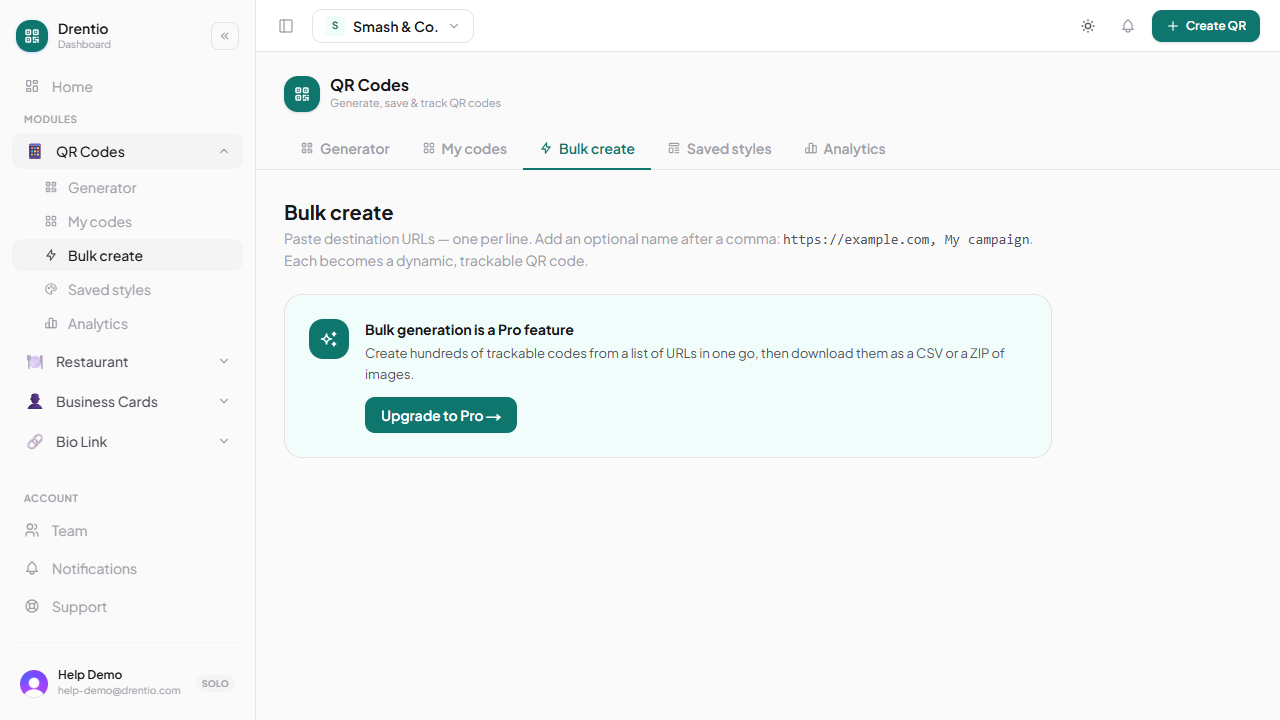
Bulk-create from CSV
Generate 500+ codes from a spreadsheet.
Need 200 codes for your warehouse, every employee, every product? CSV bulk import: upload one spreadsheet, get a ZIP of QRs back.
When to use it
- Warehouse / inventory tagging (one code per SKU or bin)
- Employee badges (one vCard QR per person)
- Marketing campaigns (one tracking URL per channel / partner / store)
- Event check-in (one ticket QR per attendee)
CSV format
The first row is the header. Required columns vary by code type. For URL codes:
name,url,folder
Summer promo - Insta,https://example.com/promo?src=insta,Marketing
Summer promo - FB,https://example.com/promo?src=fb,Marketing
Summer promo - Email,https://example.com/promo?src=email,Marketing
For vCard codes:
name,firstName,lastName,organization,email,phone
Marcus Reed,Marcus,Reed,Smash & Co.,marcus@smashco.example,+17185550101
Aria Tanaka,Aria,Tanaka,Smash & Co.,aria@smashco.example,+17185550103
The full per-type field list is in the upload dialog.
How to bulk-create
Step 1 — Open Bulk create
From /dashboard/<brand>/qr/bulk.
Step 2 — Pick code type + dynamic vs static
Same choice as making a single code. Dynamic is recommended for anything you might want to repoint later. Static is fine for one-off prints.
Step 3 — Upload CSV
Drag-and-drop or pick a file. Max:
- Pro — 500 rows per import
- Business — unlimited
The system validates the CSV first (missing fields, malformed URLs, duplicate names). You see any errors before any codes are created.
Step 4 — Apply a saved style
Pick a saved style from your library so every code has consistent branding. Or skip and use the default.
Step 5 — Generate + download ZIP
Tap Generate. Takes ~10 seconds per 100 codes. When done, tap Download ZIP — every code as a PNG, named by its CSV name column.
Test with a small CSV first. Upload 3-5 rows, download the ZIP, scan one with your phone, verify the destination is right. THEN do the full 500.