Restaurant
Kitchen Display System (KDS)
Order cards, prep timers, item-level checkboxes.
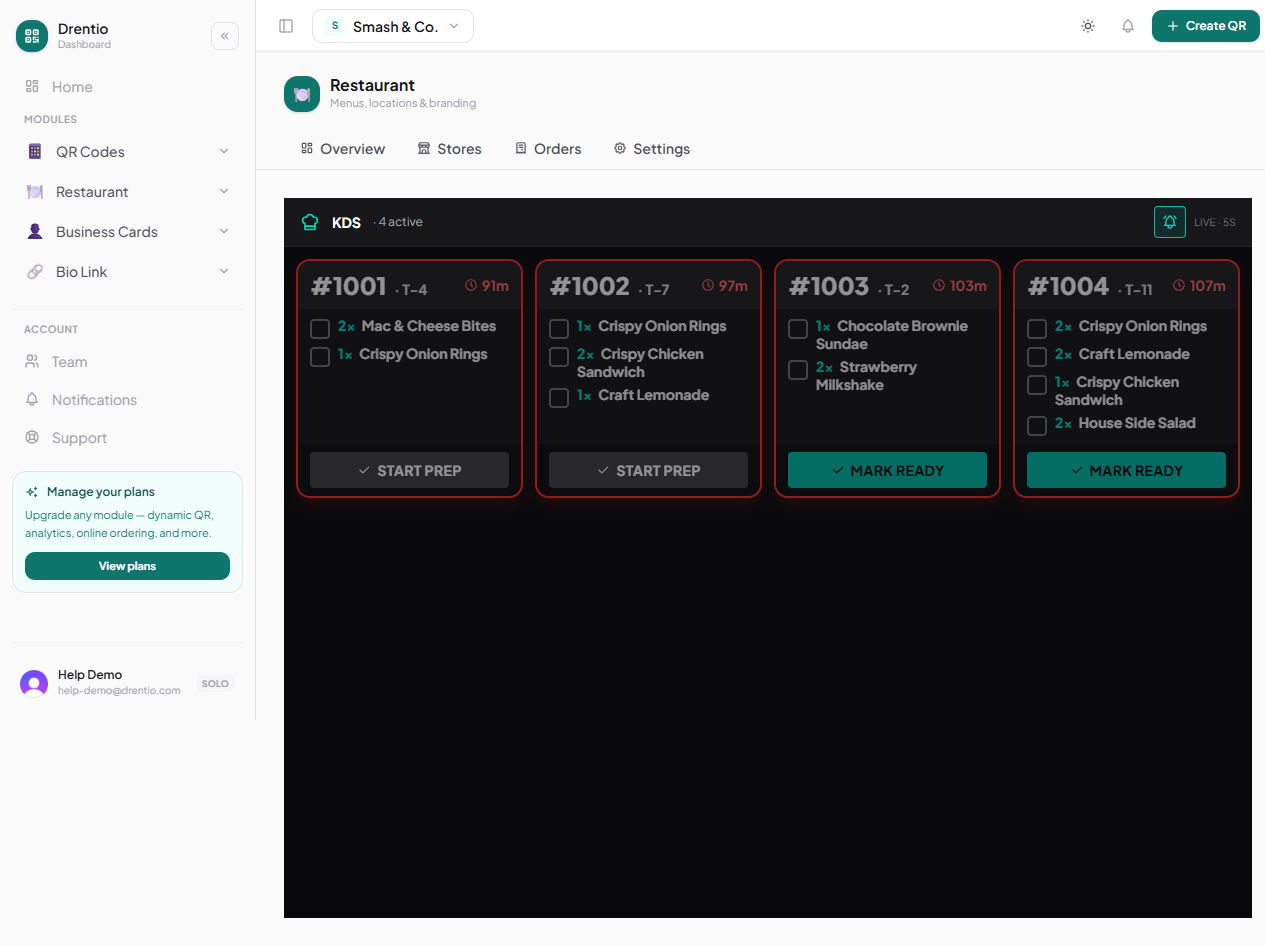
KDS is the fullscreen kitchen display — mount a tablet or monitor in your kitchen, and incoming orders appear as cards with prep timers. Cooks tap items off as they plate them. When the last item on an order is checked off, the order auto-promotes to "Ready" and disappears from the board.
What you need
- Premium plan ($119/mo)
- A spare tablet, monitor, or laptop facing the cook line
- A browser logged in as someone with restaurant editor access
How to open KDS
From Stores → your store → KDS. The screen takes over your tab — that's intentional. Press F11 (or your browser's equivalent) for true fullscreen.
What's on each order card
- Order # + table at top
- Elapsed time with color escalation:
- 0-5 min → default grey
- 5-10 min → orange (you're behind)
- 10+ min → red + pulse (urgent)
- Item list with quantities and modifiers
- Combo items show their slot breakdown ("Burger Meal · Main: Bacon Burger / Side: Onion Rings / Drink: Soft Drink")
- Special instructions in italic ("no pickles")
- Per-item checkboxes on the left of each line
The workflow
Step 1 — Order pops up
A new card appears within 5 seconds of the diner placing the order. A 3-note kitchen chime plays. The card starts grey (0:00).
Step 2 — Cook starts prepping
The order auto-advances to "preparing" the moment any item is checked. No "Start Prep" button needed.
Step 3 — Tap items as you plate
As each line is plated, tap its checkbox. The line strikes through. Other items stay on the card.
Step 4 — Last item → auto Ready
When every line is checked, the card disappears. The order shows as "Ready" in the Orders tab. Front-of-house knows to deliver.
Step 5 — Mistake? Uncheck
If a cook tapped done by mistake on a ready order, the card reappears and the order drops back to "Preparing".
The chime is muteable. Top-right of the KDS screen has a bell-icon button. State persists per device (localStorage), so muting on the kitchen tablet doesn't affect a manager checking from home.
What KDS does NOT do (yet)
- ❌ No Hold / Recall — for fine-dining party-timing flow. Deferred for now.
- ❌ No per-station routing — single screen for all stations. A 4-cook line all watches one screen.
- ❌ No printer integration — screen-first only. We're not adding thermal printers in the near term.