QR codes
Customize your QR design
Logo, colors, shapes, gradients.
A boring black-on-white QR is fine functionally. A branded QR — your colors, your logo, the right shape language — gets scanned more. Diners hesitate less. Trust is higher.
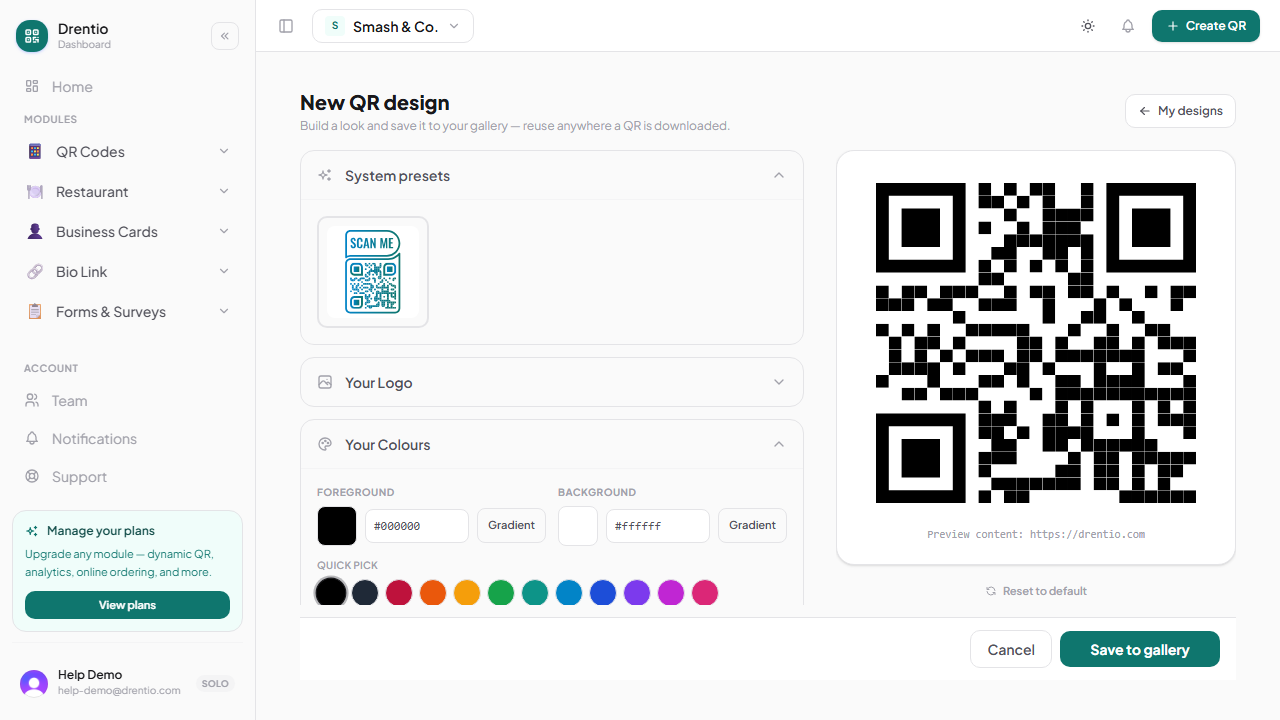
What you can customize
| Element | Options |
|---|---|
| Foreground color | Any color or gradient (linear / radial) |
| Background color | Any color or transparent |
| Dot shape | Square / dotted / rounded / classy / extra-rounded |
| Eye shape | Square / rounded / dotted / diamond (15 variants total) |
| Eye color | Separate from dot color (e.g. orange eyes on a black QR) |
| Logo | PNG / SVG upload; centered, size adjustable |
| Frame | "Scan me" call-out frame in 4 styles (Pro+) |
| Error correction | L / M / Q / H (higher = bigger code but survives more damage / logo overlap) |
How to design
Step 1 — Open the QR dashboard
From drentio.com/dashboard/<brand>/qr. Pick the type tab matching what you're encoding.
Step 2 — Open the design panel
Tap Customize below the live preview. The preview updates as you change settings — no save needed for preview.
Step 3 — Pick your foreground first
Solid color or gradient. Avoid colors lighter than 40% black — scanners need contrast. Light grey looks elegant but fails scanning in low light.
Step 4 — Add a logo (optional)
Tap the logo slot. Upload a PNG (transparent background ideal) or SVG. Size it to ~25% of the QR — bigger covers too many dots, smaller is hard to see.
Step 5 — Bump error correction to Q or H if you added a logo
The logo covers dots. The QR uses redundancy to still be readable, but you need to give it enough redundancy to spare. Q is usually enough; H for big logos.
Step 6 — Save the style (optional)
If you'll reuse this look across codes, tap Save style. Now it's in your library — see Saved styles.
Always test by scanning before printing in volume. Use the phone you'd expect a real user to use (the cheapest one in your household, low-light room). Some "beautiful" QRs fail in real conditions even though they look fine on screen.