Business Cards
Create your first card
Pick a layout, fill the fields, share.
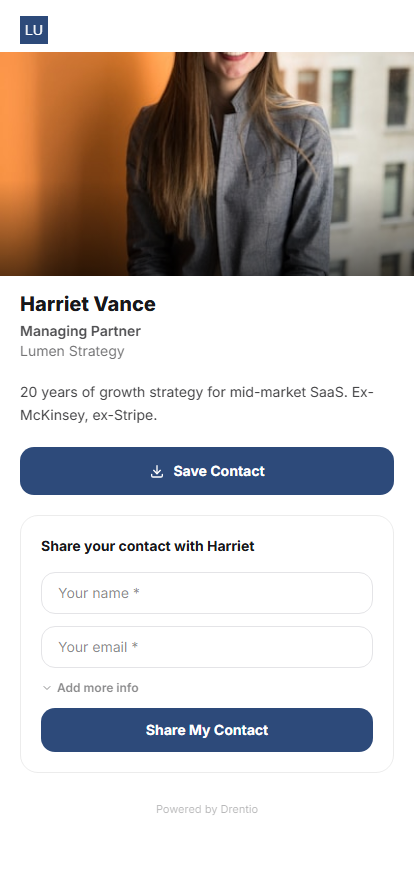
A digital business card is a hosted page where someone scans your QR (or follows your link) and lands on your full contact info — with a big "Save Contact" button that adds you to their phone's address book in one tap. Trackable, shareable, never out of date.
Companies vs cards
Cards belong to a Company. A Company is like a folder — it holds your card or your team's cards together with shared branding (logo, primary color, default template).
You might have:
- One Company "Acme Corp." with cards for every employee
- One Company "Personal" with just your card
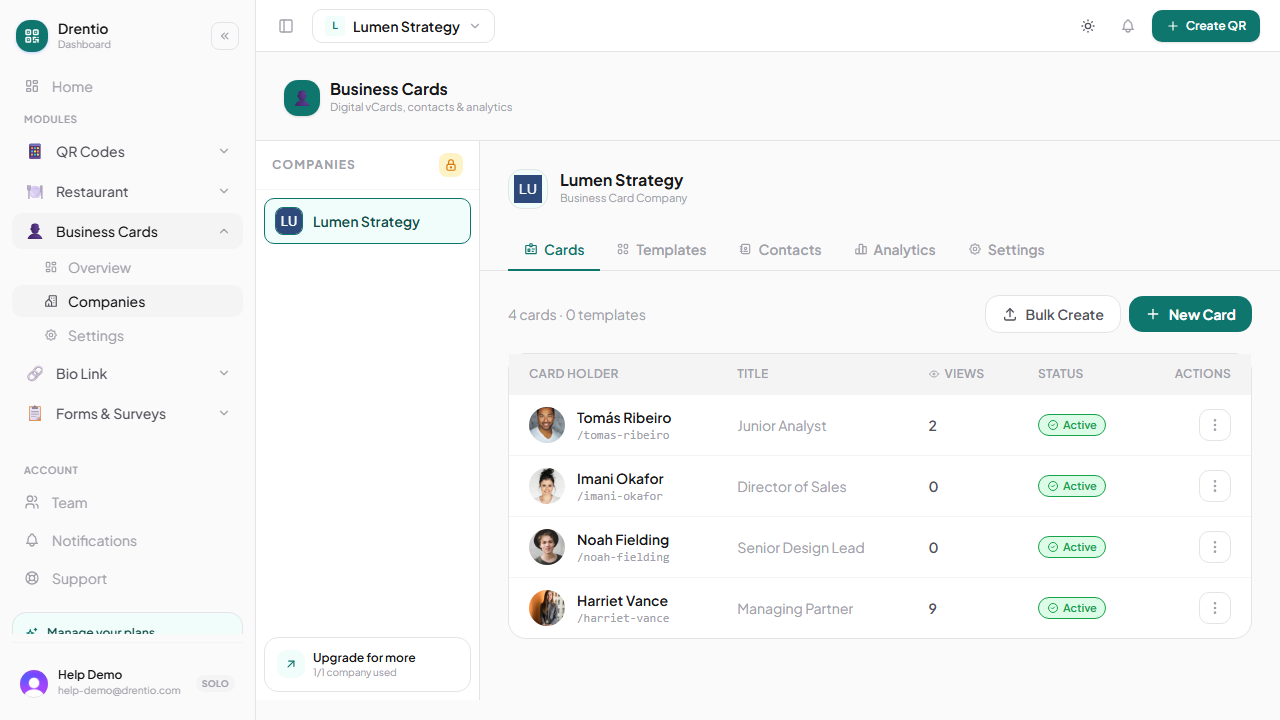
How to make your first card
Step 1 — Create a Company
From /dashboard/<brand>/business-card. Tap + Add company. Give it a name + slug.
Step 2 — Add a card
Inside the company, tap + New card.
Step 3 — Pick a layout
6 options: Cover · Sidebar · Centered · Banner · Minimal · Split. You can change layout anytime — same data, different presentation.
Step 4 — Fill in your details
The form has ~30 fields organized by section: Identity (name, photo), Professional (title, company, bio), Contact (email, phones, website, address), Links (social, custom), Design (colors, fonts).
Required at minimum: first name + last name + at least one contact method (email or phone).
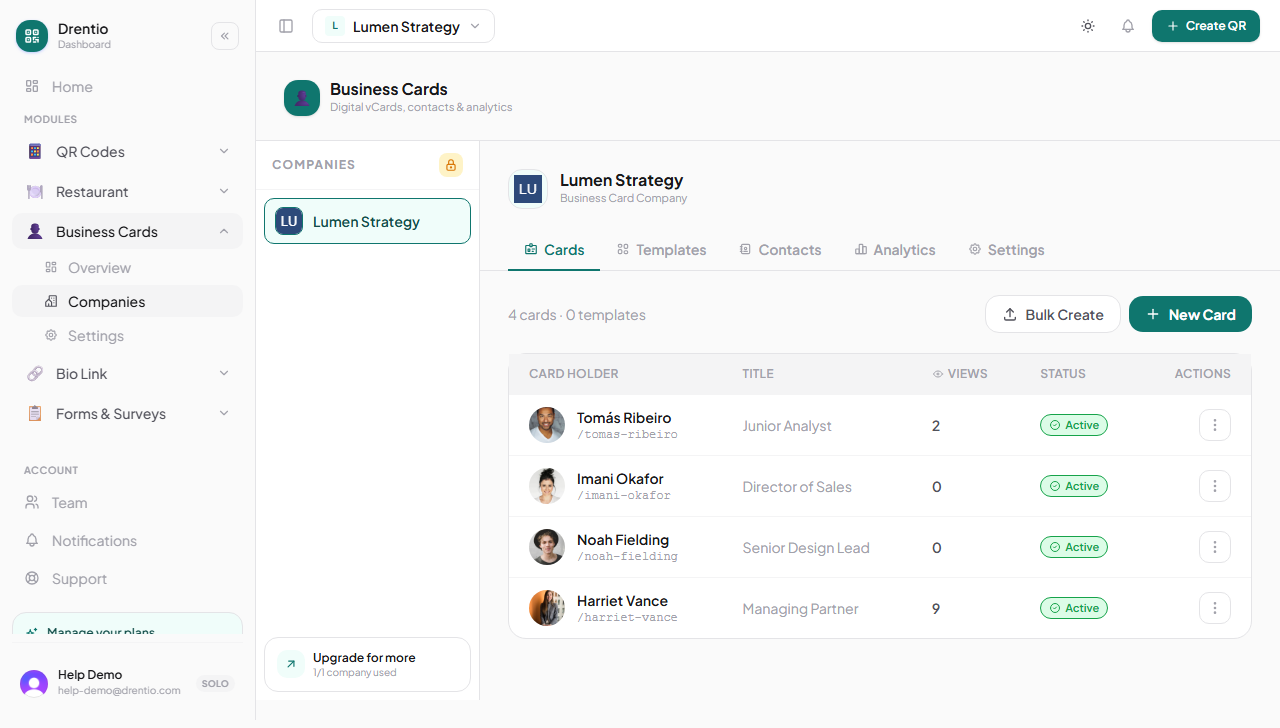
Step 5 — Save + share
After saving, the card is at drentio.com/c/<company-slug>/<card-slug>. Your QR is auto-provisioned — download it from the card's action menu.
What happens when someone scans your card QR
They land on your hosted page. They tap Save Contact → their phone offers to add you to their address book using a vCard download. If you've enabled "Two-way sharing", there's also a form on the page where they can leave their info — and now you have THEIR contact too.